- Open Outlook by clicking the icon on the taskbar or searching for it using the magnifying glass in the bottom left corner.
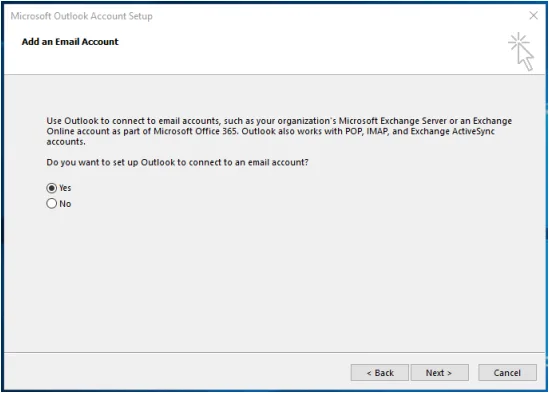
- Click Next > and leave Yes selected, then click Next > again.
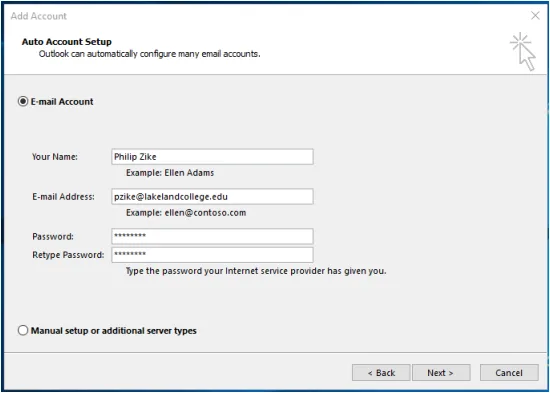
- Enter your first and last name in the first field, your Lake Land College email in the second field, and the password you use to access the Hub in the last two fields, then click Next >.
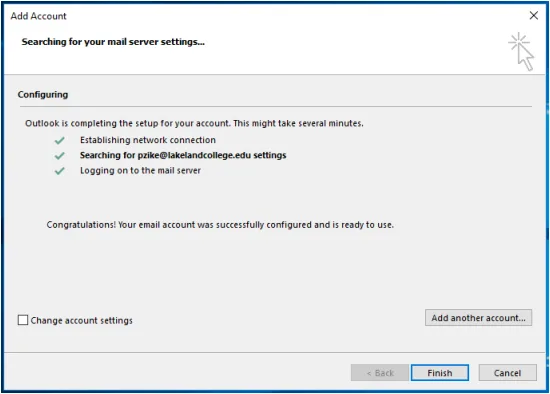
- Click Finish.
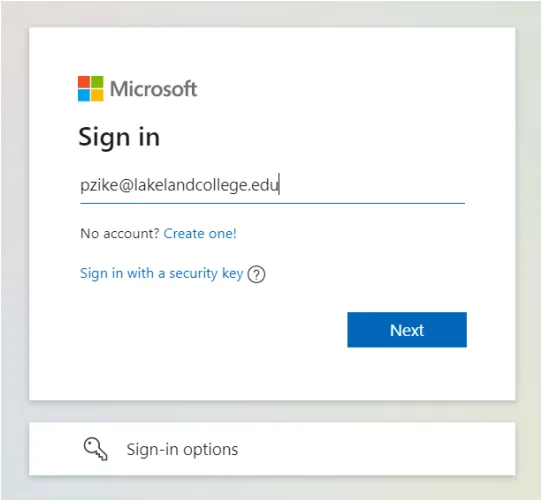
- In the window that opens next, enter your full email address and your Hub password again, and click OK. Outlook will now open.
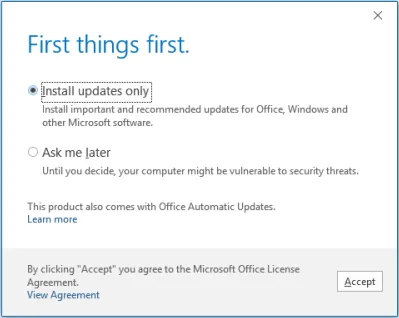
- In the next window that opens, select ‘Install updates only’ and click Accept.
- Right-click the Outlook icon on the taskbar and select “Pin to taskbar”.