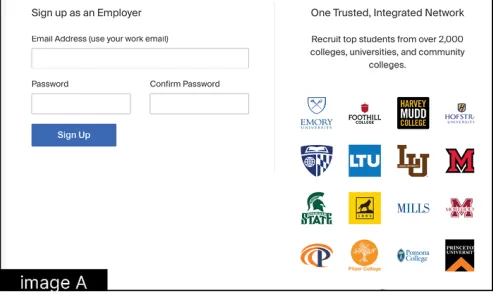
Create your employer profile and click the blue SIGN UP button (image A).
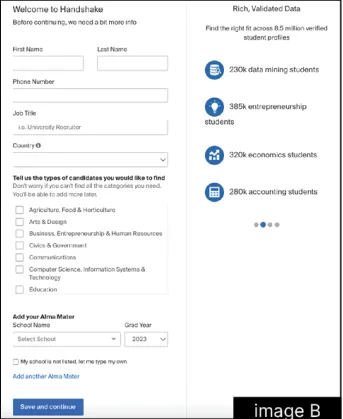
On the next page, enter the following information and click the blue SAVE AND CONTINUE button (image b).
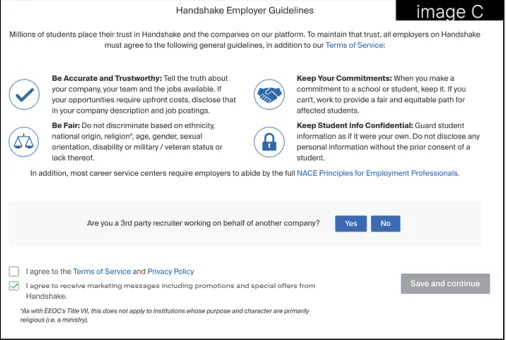
A popup will appear with Handshake Employer Guidelines, which includes our Terms of Service and Privacy Policy. It’s important that you review the guidelines and linked resources before you proceed.
Below the guidelines listed, you’re prompted to answer the question “Are you a third party recruiter working on behalf of another company (image C)?” IF YES: Click the YES button, then re view our third-party recruiting policies, and check the box for “I agree and comply with the above third-party recruiting policies.” IF NO: Click the NO button.
Check the box for “I agree to the Terms of Service and Privacy Policy” to move forward and “I agree to receive marketing messages including promotions and special offers from Handshake” if desired (image C).
Click the SAVE AND CONTINUE button (image C).
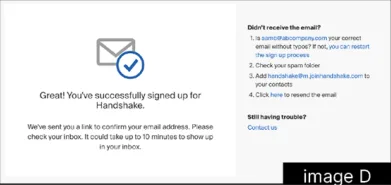
The next page contains instructions on how to verify your account via the email address you used to sign up (image d). The email should arrive in 10 minutes with a link to confirm your account.
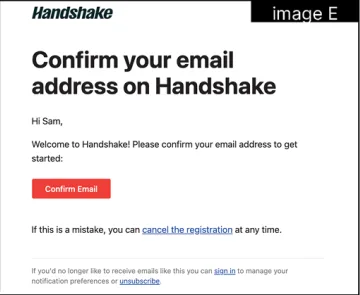
When the email arrives, click the red CONFIRM EMAIL button in the email to verify your account (image E). Email verification links are active for 12 hours after they are sent.
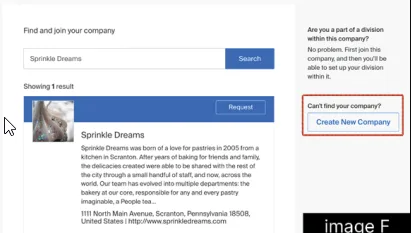
From here, you’ll be redirected to Handshake to find and join your company, or create a new company profile. The page will display a list of company profiles associated with your email domain. If there is more than one, review the details for each profile. Click the blue REQUEST button to select that company profile (image F). If your company does not exist, click the CREATE NEW COMPANY button to the right of the page (image F).
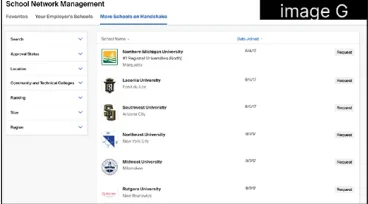
After your employer account is validated, and you’ve connected to your company profile, you can request Lake Land College (image G).