
How to Set Up Email on Android or iPhone
IPHONE
For those who have Apple products, the IPHONE, this section will describe how to setup the Lake Land College email on your phone, now that your email has been migrated.
If you have an Android Phone, please skip down to Android section for those steps.
- First go to settings.
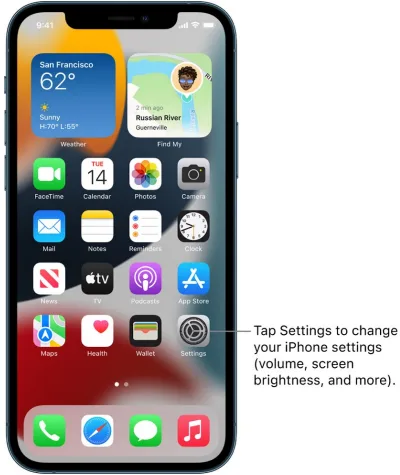
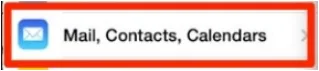
- Depending on your version of Apple IOS, your settings may look different, but you will go to Mail, or it may say Mail, Contacts, Calendars.

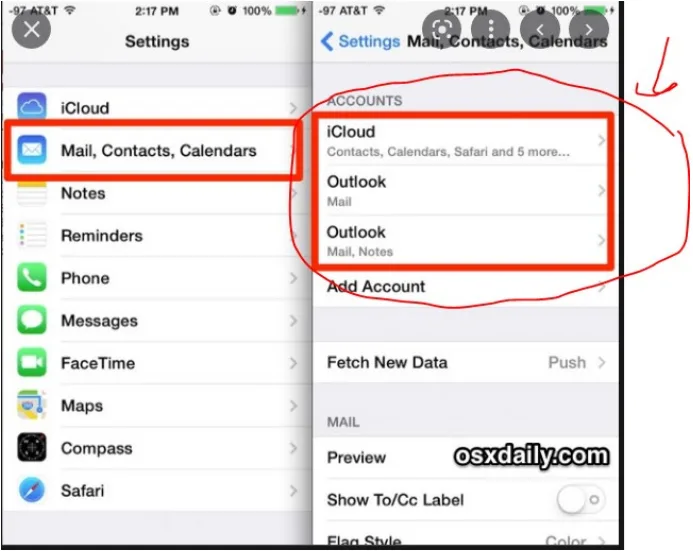
- When you first open MAIL, it will show you your accounts.
- Once in MAIL, you will first DELETE your old Lake Land College Email Account. To do so, select the Lake Land College account you wish to delete. If you never had your email on your phone, disregard deleting.
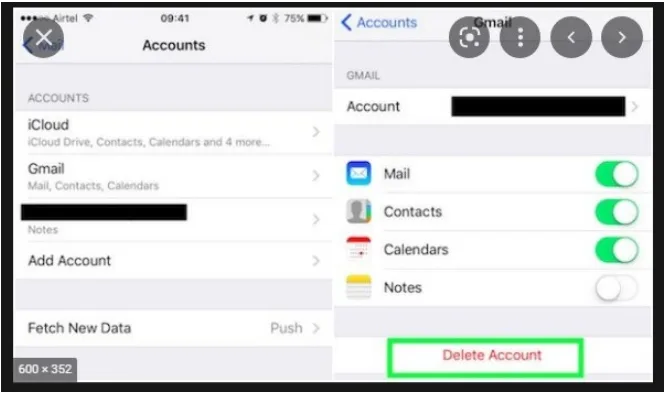
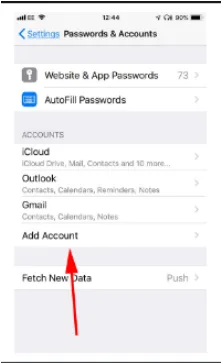
- Once done, you will select ADD ACCOUNT
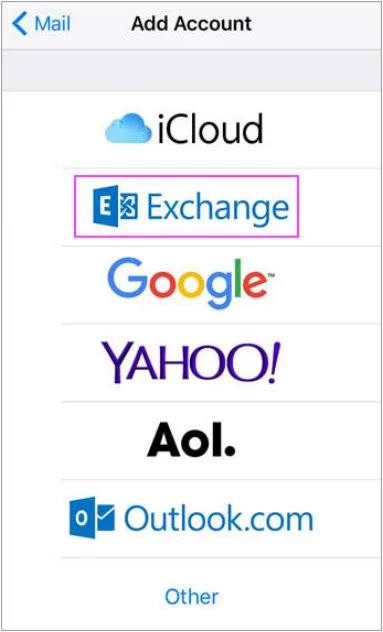
- Then you will choose EXCHANGE
- Then you will enter your email (username@lakelandcollege.edu), and for the description, you can put whatever you want to let you know that it is your Lake Land College email. Usually you delete exchange from the description, and type LLC Email or Lake Land College Email or something like that, as seen in the image below!
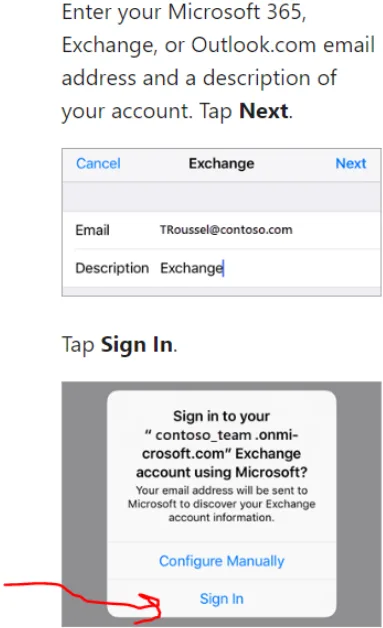
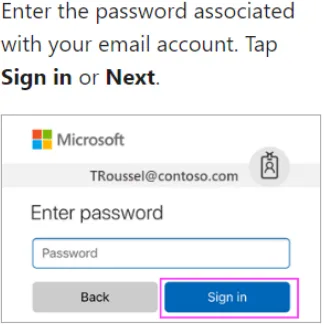
- Sign in. It will open to where it asks for your password. The password is your email password (same password you use to sign into Canvas, Hub, Iris).
- It may ask you for permissions, accept them and then choose which you want to sync to your phone. It can be just email, just calendar, or everything. Options are yours to choose.
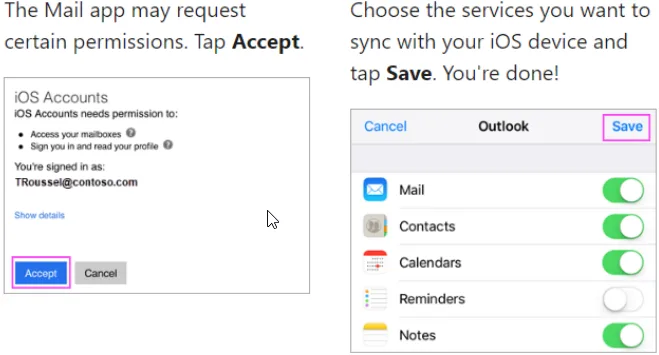
Now your email is setup and should begin to sync to your IPHONE.
ANDROID
For android setup please continue on here for proper email setup.
- Open the Google Play Store and search for Outlook APP. Should look similar to the below screenshot.
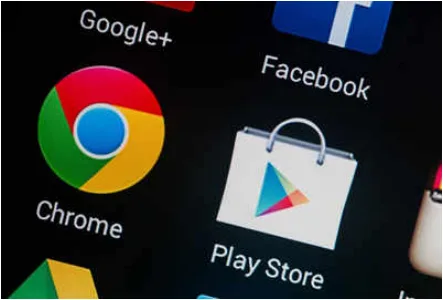
- Search for the OUTLOOK APP and download and install it.
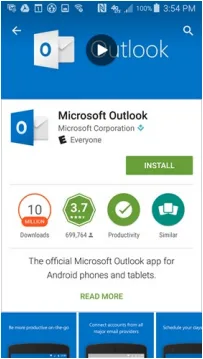
- Once installed, then you will open it.
- Select add account.
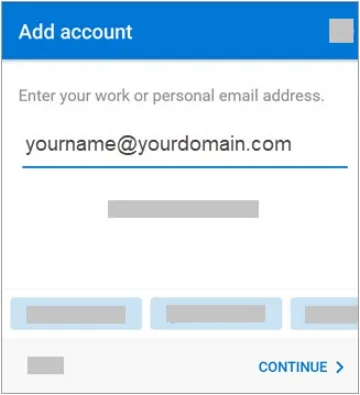
- Enter in your email (username@lakelandcollege.edu)
- Click next or continue
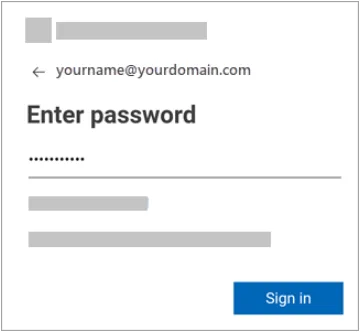
- Enter your email password (same one as Canvas, Hub, Iris)
- Click next or sign in.
- Should begin syncing your email.