
Faculty Guide to Assignment Linking and Viewing Course Data in Canvas
This tutorial coaches faculty through Assignment Linking in HelioCampus directly from Canvas. Before we begin, it would be beneficial to prepare your course with a few items.
Quick Clicks!
Quick Clicks! are the simple steps to use when you update your HelioCampus links or view data.
Assignment Linking
- Click the HelioCampus link.
- Click an outcome in the left panel.
- Click the Manage button.
- Check the box next to each assignment you want to link. If you want to link to specific questions, click the Criteria button and check the box next to the question(s).
- Click Save Links.
Viewing Data
- Click the HelioCampus grid/main menu.
- Click Assessments.
- Click either the View Data (bar graph in circle) button or View Individual Data (people in circle).
Preparation for Assignment Linking in Quizzes/Exams or Assignments
- HelioCampus does not support question-level linking for Classic Canvas Quizzes that include Question Groups. Only quizzes without randomized pools/groups are supported for question-level linking.
- To work around the issue, you can remove that question from the Question Group and offer it in the quiz on its own. It should appear in the Link Assignments area as an option.
- To add a rubric to a quiz or exam, it must be a graded quiz – not a graded survey or ungraded survey.
- If you are using a Rubric for an assignment, please add the Rubric before completing the steps below.
Getting Started: Logging into Canvas
First, you will need to log into Canvas.
- From the Lake Land College Canvas page, click My Laker Hub.
- Enter your Lake Land College email and password.
- Click the Sign in button.
- In the Hub, look for the Laker Louie widget/picture, and click Canvas.
- From the Canvas dashboard, click on the course you are teaching and would like to Assignment Link.
Making HelioCampus Active in Settings
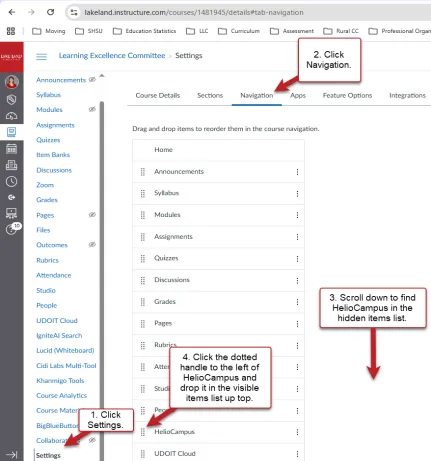
On the left-hand navigation bar, if you do not see the HelioCampus link, then you will need to make it active in the navigation. To do this,
- Scroll down to the bottom of the left side navigation bar and click the Settings link.
- Click Navigation.
- Scroll down to find HelioCampus in the hidden items list.
- Click the dotted handle to the left of the word HelioCampus. Drag and drop it in the visible items list at the top of the page.
- Scroll to the bottom of the screen and click Save.
Figure 1: Activating HelioCampus in Navigation Settings
Completing Assignment Linking
Now, you can complete Assignment Linking.
- In the left navigation menu, click HelioCampus, which automatically opens inside of Canvas.
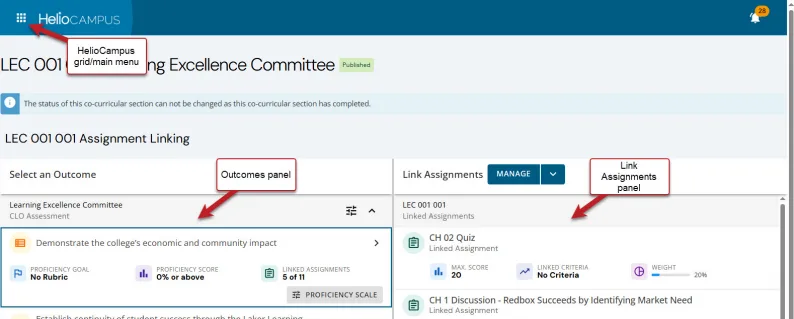
- You will see the outcomes in the left panel. The right panel is the Link Assignments panel, which should be blank as you enter HelioCampus the first time, as seen in Figure 2.
- When you return after Assignment Linking, then you will see the linked assignments as in Figure 3.
- If you do not see anything in the right panel when you click an outcome, then you do not have any outcomes linked yet (Figure 2).
Figure 2: Blank Linked Assignments Panel
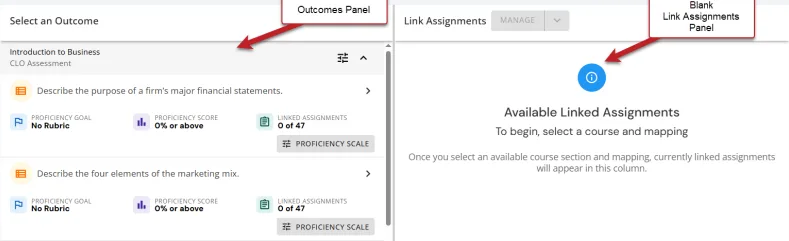
Figure 3: Assignment Linking Panels
- If you see outcomes, skip this information and move on to step 3 below.
- If you do not see outcomes in the left panel, then you will need to Refresh the LMS Assignments:
- In the top left corner, click the HelioCampus grid/main menu
 to open a drop-down list.
 - Click Assessments.
- Click Assignments.
- Click the Refresh LMS Assignments button.

- Return to the HelioCampus grid/main menu to open the drop-down list.
- Go back and click Assessments.
- Select Assignment Linking.
- In the top left corner, click the HelioCampus grid/main menu
- In the left outcomes panel, you should see three types of outcomes: The requirement for assessment is to select one course outcome, one program outcome, and two Laker Learning Competencies.
- CLO Assessment: This refers to program outcomes, which are found on your course information form.
- Program Assessment: This refers to program outcomes, which are established for career-technical certificates and AAS programs and were mapped in an Excel document and exist in HelioCampus. Contact the Assessment Office to find the most recent copy of your program outcomes.
- ILO Assessment: This refers to institutional learning outcomes, or Laker Learning Competencies, which are also found on your course information form and are measured campus wide.
- Click one of the course outcomes. For this example, I clicked directly on “Demonstrate the college’s economic and community impact”.
- On the right in the Link Assignments panel, click the Manage button. A panel opens where you can then click the assignment(s) to link that outcome.
- A list of matching assignments will appear. Check the box next to each assignment you want to link.
- If you are linking to a quiz, check the box next to the quiz.
- If you are linking to a quiz question, check the box next to the quiz, click the Criteria button, and check the box next to the question you want to use. See Figure 4 below.
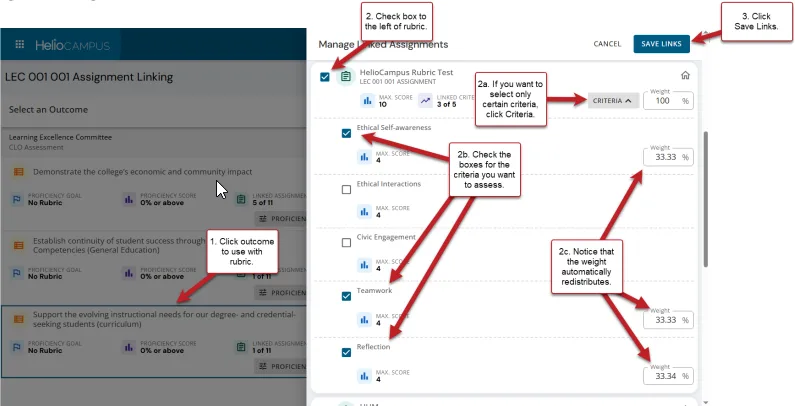
- If you select a Rubric or a Laker Learning Competency, then you could link to the overall rubric or to specific rubric criteria. See Figure 5 below.
- If you select one assignment to measure for that outcome, the weight will automatically fill in as 100%. If you want to add multiple assignments that measure that outcome, you can do that and adjust the weights as needed. The Save Links button stays disabled until the total weight equals 100%.
- When you have checked the box(es) to link the assignments, click Save Links to complete the process.
Figure 4: Selecting Questions in a Quiz
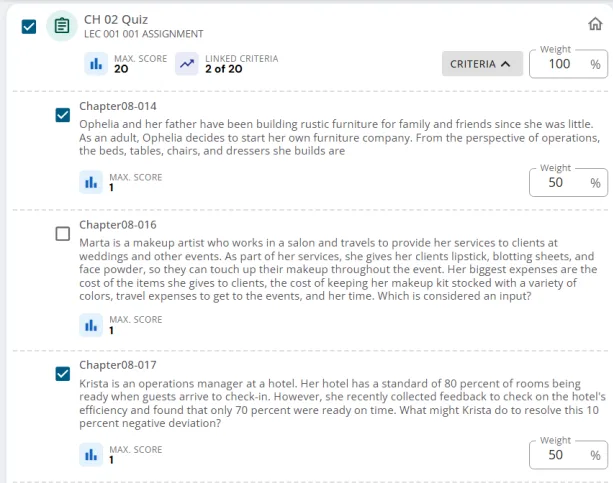
Figure 5: Selecting Rubric or Rubric Criteria
Viewing Course Data in HelioCampus
If you have just established Assignment Linking, your data will not immediately appear in Canvas for you to view it. HelioCampus and Canvas must complete a data upload overnight, so you should be able to view the data the next day.
These instructions describe how to click into Canvas to view your course section data.
- If you are teaching multiple sections and want to see your data from each of your sections without clicking into each one, please email the Assessment Office, offering the course and section numbers that you are teaching. We can send you a report with all of your courses included.
- To view all of the course data, the Lead Instructor for the course or Program Coordinator will receive a digest of all sections at the end of the year. (The Lead Instructor would be the instructor who coordinated the assessment process for you.) You are welcome to contact your lead instructor for that information or learn when the information will be discussed.
To view the data for your course:
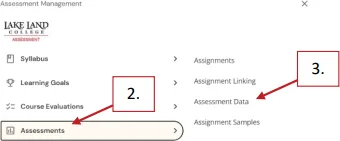
- In the top left corner, click the HelioCampus grid/main menu to open a drop-down list.
- Click Assessments.
- Click Assessment Data.
Figure 6: Assessments > Assessment Data
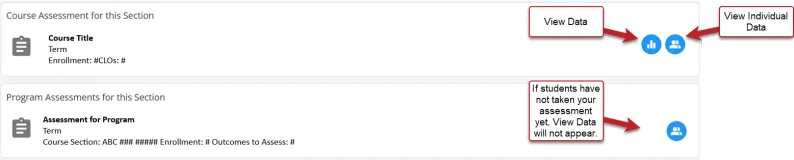
- On the right side of the screen, you will see two circles: View Data and View Individual Data
- View Data shows the results for the whole course.
- View Individual Data shows the results by student.
Figure 7: View Data and View Individual Data
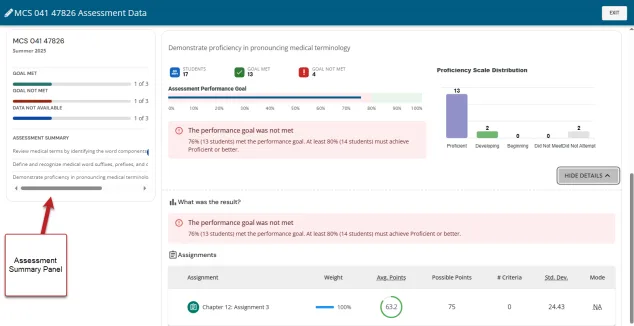
After clicking View Data, you will see an assessment summary in the box on the left. Additionally, you can scroll through each outcome and its data to see how students performed in that section. The Show/Hide Details button opens and closes to provide more information about overall performance and statistical data relating to that assignment.
Figure 8: View Data Screen
Viewing Individual Data by reviewing the students’ learning results side-by-side could provide one more layer of insight for assessment. Some students will perform high on one element and low on others – asking why and seeing if it is a trend might provide helpful insight.
Figure 9: View Individual Data
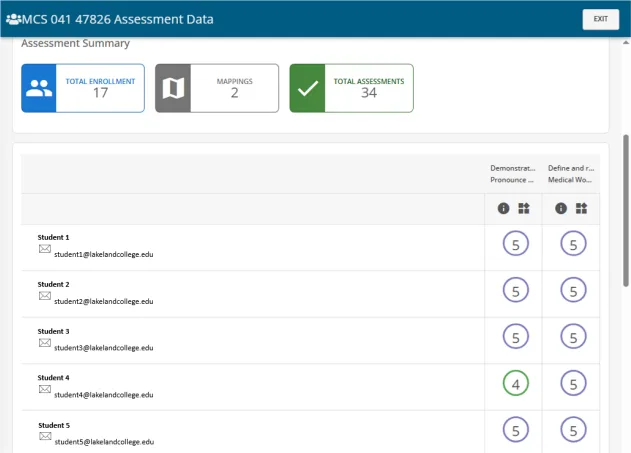
This information is ready for reflection and description in your course narratives and department discussions.
- For example, on the Data Screen for this course section, the assignment average was 63.2, which was about 85%. That’s not bad.
- Thirteen students performed well – why? In what areas did they excel? In what areas were they challenged? What could they have performed better, and why? What scaffolds worked for them, and why? Do you see new areas that you could support based on their answers?
- Two students did not perform as well – why? What assignment portions stumped them and why? What are the scaffolds that are in place or that could be made to support that learning better? And, when they reviewed that feedback, what was their assessment about what they could have done differently? If you have none of this information, that’s fine to mention.
- Two students did not submit an assignment – why? What was done or could have been done, if anything, to help them turn in the assignment? Was there anything content-wise that they struggled to understand, or were they struggling with attendance? It’s worth reflecting on how, why, and what their successes and challenges were or could have been.
- It would be worth discussing where the students did not perform as well in the assignment, which could be captured in the rubric criteria is selected or in specific assignment questions.
Frequently Asked Questions
- What if you link to the wrong assignment? No worries – go change it, following steps 3-6.
- What if it is beyond the semester and I would like to link to more assignments? Again, no worries! Follow steps 3-6 and add those assignments.
- Will my Assignment Linking need to be reset every semester?
- If you copy your course and do not change those assignments or your outcomes, the Assignment Linking Settings will remain intact.
- If you rename an assignment or change your outcomes through HelioCampus, then you will need to relink.
- If you need the Assignment Office to relink for you, we can! Please email your
- Outcome
- Assignment title
- Rubric and criteria if you need only some and not all of the rubric criteria
- Or any questions you want linked
- to assessment@lakelandcollege.edu, and we will help get the Assignment Linking completed.
- What if you want the whole department to use the same assignment and links? You can do a few things:
- Do you want to create a course shell where the assignments, rubrics, quizzes, etc., live? We can copy the course shell into any section.
- Do you want to have only an Assignment set up with a quiz, assignment, rubric, or something else? We can create, copy, and link those assignments.
- What if I do not see my outcomes? Follow the Refresh the LMS Assignments instructions above.
- What if I do not see any data? If you just linked the assignments, then it could take overnight for the data to refresh and appear. If it is the next day and you do not see any data, please reach out to the Assessment Office, sending your course and section numbers along with any assignment linking information that is missing. We will happily look into it.