Registering for Your Courses in Navigate
This workflow guide explains how you can register for courses in your Academic Plan in Navigate. If you have not yet created an Academic Plan, you should do so using the instructions “Academic Planning for Students with an Advisor Draft Plan” or “Creating Your Academic Plan in Navigate Without an Advisor Draft Plan”.
Log in to Navigate
Go to https://lakelandcollege.navigate.eab.com/ and log in to Navigate using your Laker Hub or Canvas credentials. You can also log in by clicking on the Navigate link in the Laker Hub. Contact navigatehelp@lakelandcollege.edu if you have difficulty logging in to Navigate.
Accessing the Scheduler
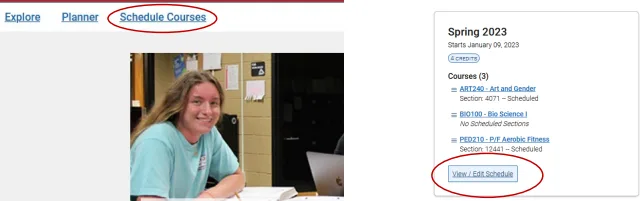
From your Navigate site, access the Scheduler by clicking on Schedule Courses in the menu at the top of the site. If you are already in the Planner, you can also access the scheduler by clicking on View/Edit Schedule in the appropriate term in the far right column of the Planner.
Scheduling Course Sections and Registering
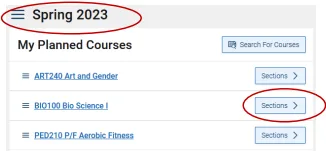
Once you are in the Scheduler, make sure that you are viewing the correct term. You can change the term by clicking on the hamburger menu next to the term name and selecting a new term. After you are in the correct term, you will see the courses that you have planned for that semester. To view the available sections for a course, click on the Sections button to the right of the course name. You will be able to view sections by location, view conflicting and full sections, and apply filters to customize your search.
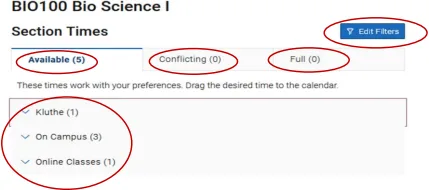
Expand any of the location or course type tabs to see a list of courses. The example below is an expansion of the On Campus tab.
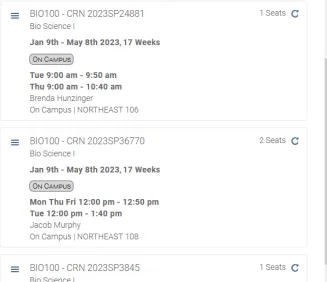
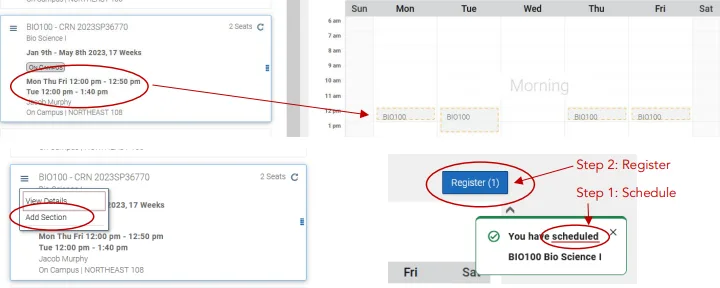
When you identify the course you want to add, click it to see its times highlighted in the scheduling grid on the right side of the screen. To schedule the course, click the hamburger menu next to the section information, then select Add Section. You have now scheduled the course; you are NOT registered for it. To register for the course, click on the blue Register button. You may register for all courses at once or one course at a time.
IMPORTANT NOTE: If you are required to enroll in a reading course (RDG007, 009, or 050) or Strategies for Success (SFS101), you must register for that course separately and before all other courses. If you are required to enroll in a reading course and SFS101, you must register in person or by phone.
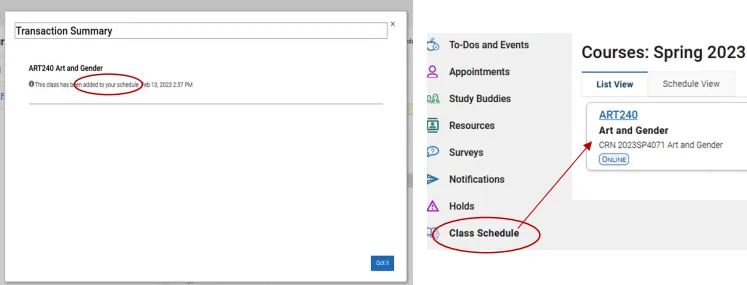
When you have successfully registered for a course, a pop-up box will confirm the transaction. You will also be able to view the course from the Class Schedule option in the left menu on your site and on the Navigate Student app.
Unscheduling a Course
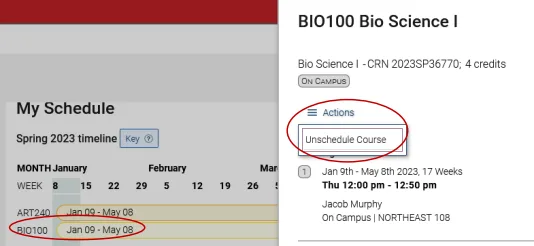
If you have scheduled a course but have not yet registered, you may unschedule it in the Scheduler. To do this, click on the course in the My Schedule timeline at the top right of the Scheduler. The course information box will appear. Click the hamburger menu next to Actions to bring up the Unschedule Course option. Click on Unschedule Course to take the course off of your schedule.
Dropping a Course/Withdrawing from a Course
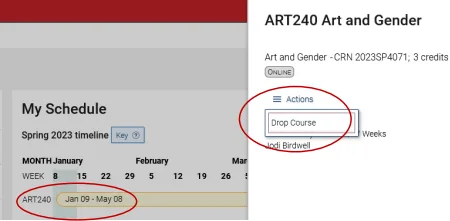
If you have registered for a course, you may drop it before the refund deadline, or withdraw after the refund deadline and before the deadline to withdraw in the Scheduler. To do this, click on the course in the My Schedule timeline at the top right of the Scheduler. The course information box will appear. Click the hamburger menu next to Actions to bring up the Drop Course option. Click on Drop Course to drop or withdraw from the course.
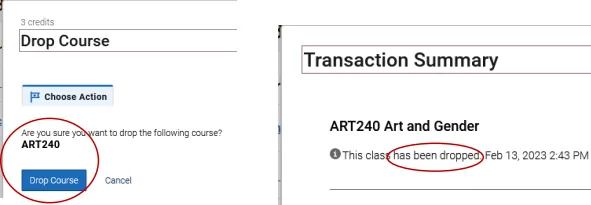
You will be prompted to confirm you wish to drop/withdraw from the course. Upon confirming, you will receive a transaction summary of the action.
Important Reminder: If you adjust your semester course selections to accommodate course availability or drop or withdraw from a course, remember to revise your Academic Plan to reflect changes.
Registering for a Course with a Section Number
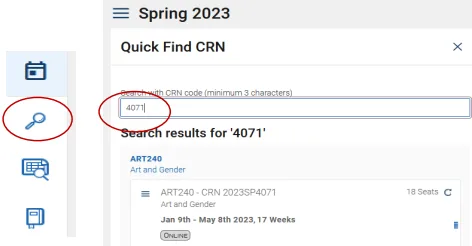
In certain circumstances when you already have a section number for a course, you can quickly register for it by selecting the Search for Sections icon in the Scheduler.