Hosting a Meeting (in VM)
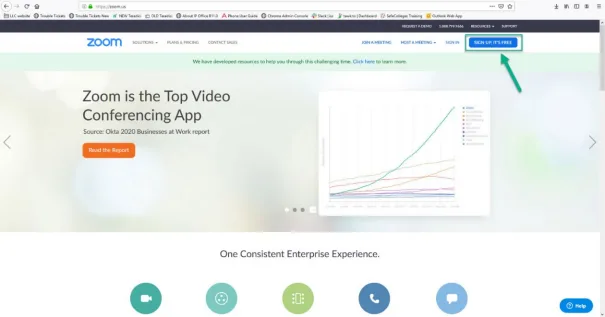
The first thing you will want to do if you have not created an account is to sign up using your staff email by going to the website. Accept the request to make it an LLC account. Finally, you will receive an email from Zoom – click the button in the body text to activate your account. If you also have a personal Zoom account, you will need to sign out and sign in with your LLC account.
Schedule a Meeting
In Outlook, you should have two buttons on the Home tab. Click the Schedule a Meeting button. This will open another window to change settings for the meeting.
- Change Meeting ID to use your personal meeting ID.
- Turn on the Host and Participants Video settings.
- You can also set a password for joining the meeting.
- Base accounts have a 40-minute time limit for hosting meetings.
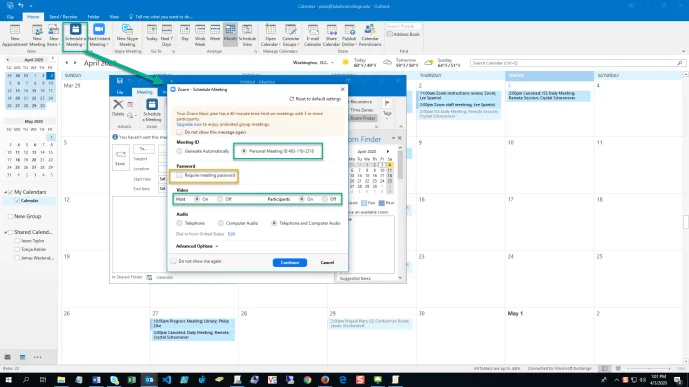
Click Continue to insert this information into a calendar event, then set the time and date, invite attendees, etc. to complete the scheduling process.
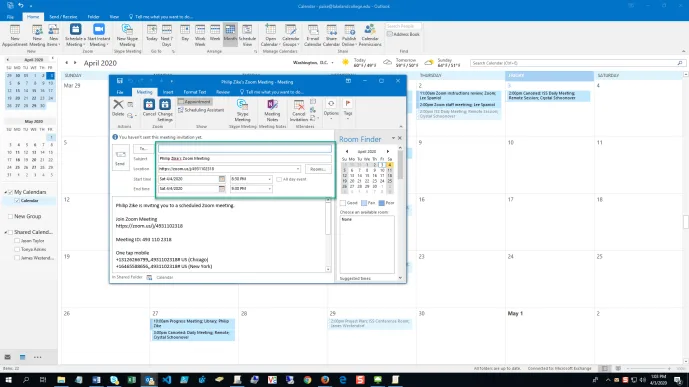
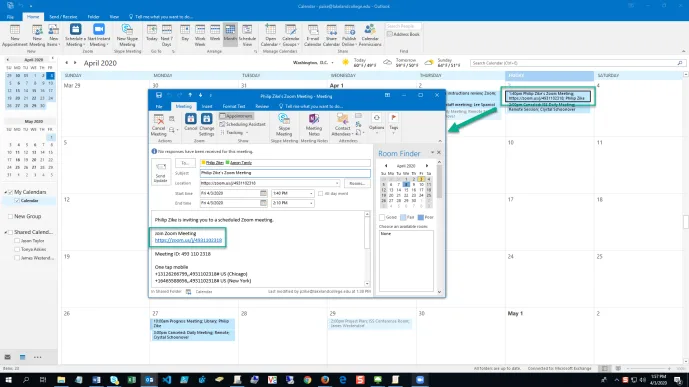
Once this is done and the time of the meeting comes, open the calendar and click the Join Zoom Meeting link (it will ask you to sign in if you haven’t already) to start the meeting.
Start an Instant Meeting
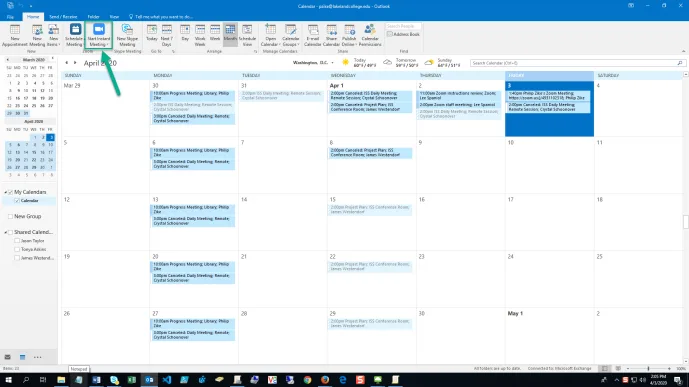
Click the Start Instant Meeting button to immediately start a meeting using your saved settings.
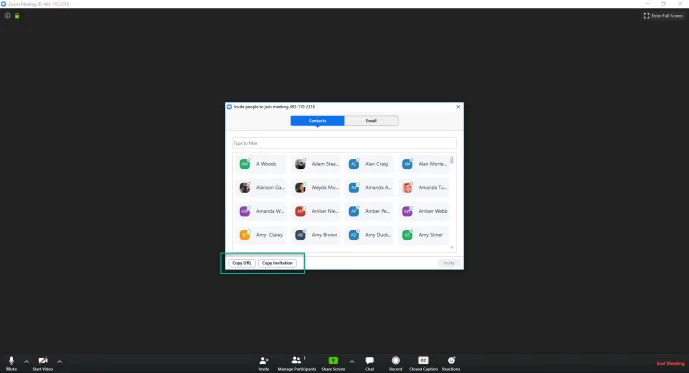
Invite attendees to the meeting by clicking the Invite button.
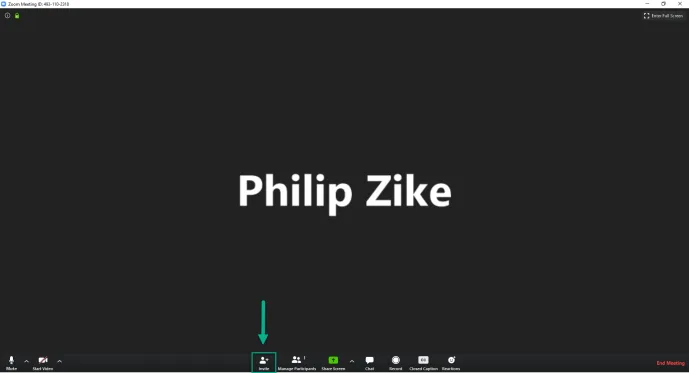
This will bring up the LLC Zoom contacts. You can send invites this way or by clicking the Copy URL or Copy Invitation buttons and pasting them into an email to attendees.