Email Banners
FAQ: Defend Banners
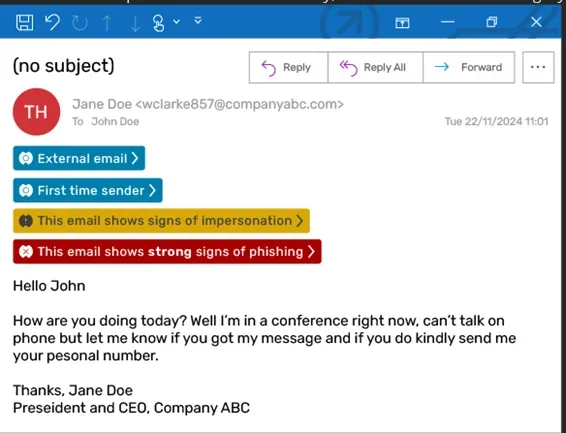
You will notice some new banners on your emails. Incoming emails from outside your organization will have colored banners inserted using our new security partner, Defend. These banners inform you of how the email has been classified after Defend analyzes the content and detects potential threats. The color of the banner corresponds to the associated level of threat.
The banners are interactive tools designed to enhance your security awareness in real time. Each banner interaction serves as a mini-training session, providing specific information about why an email might pose a threat and helping you understand potential risks over time. An email can receive multiple banners simultaneously, either from the same category or different categories, depending on the threats detected.
What do these banners mean?
Productivity Banners: Productivity banners are gray and are applied to emails that Defend classifies as graymail or spam. These emails are usually non-malicious bulk emails such as newsletters, announcements, or advertisements. The purpose of these banners is to act as a visual cue for easy categorization and improved productivity.
How do I find the Graymail folder?
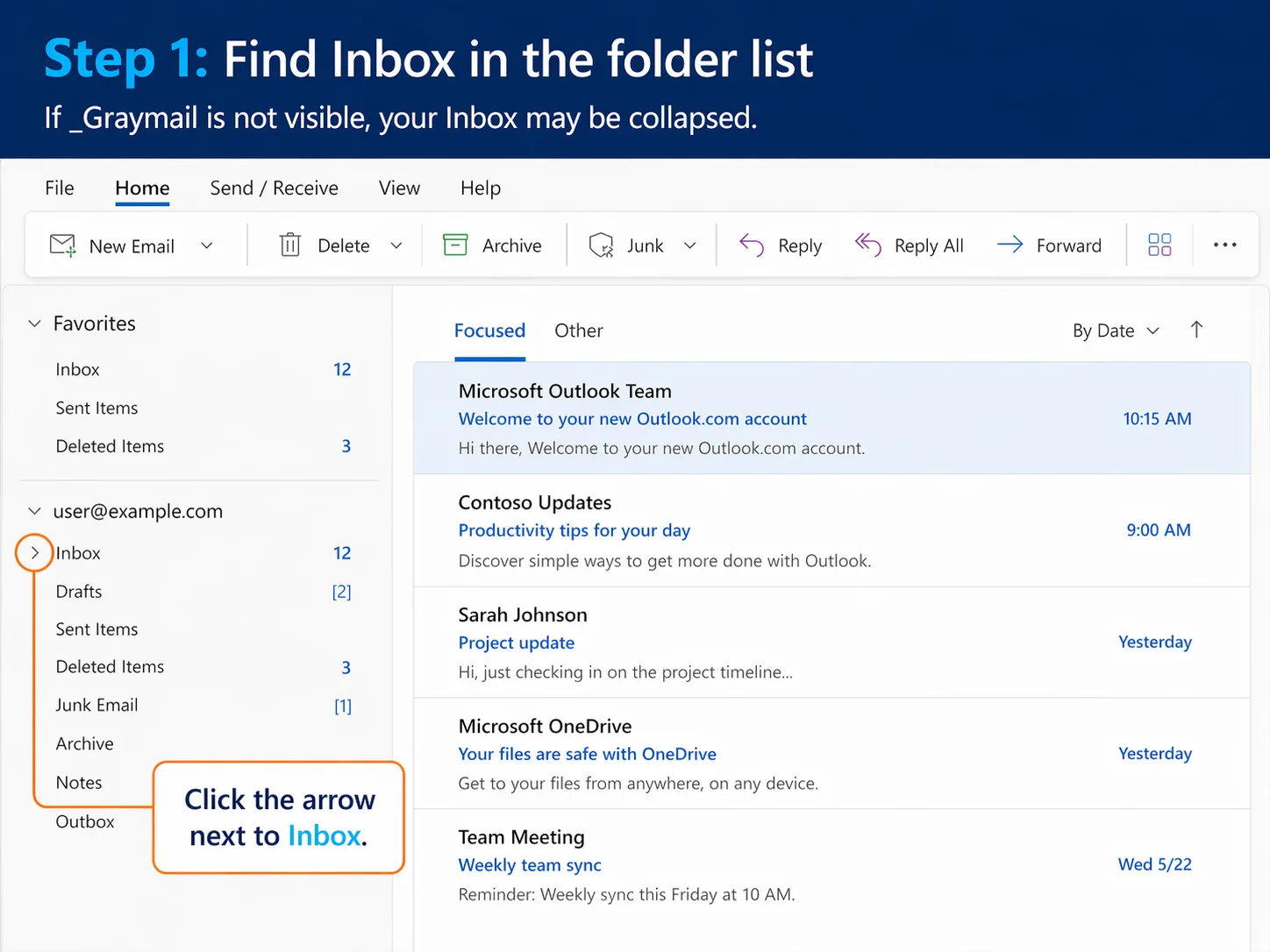
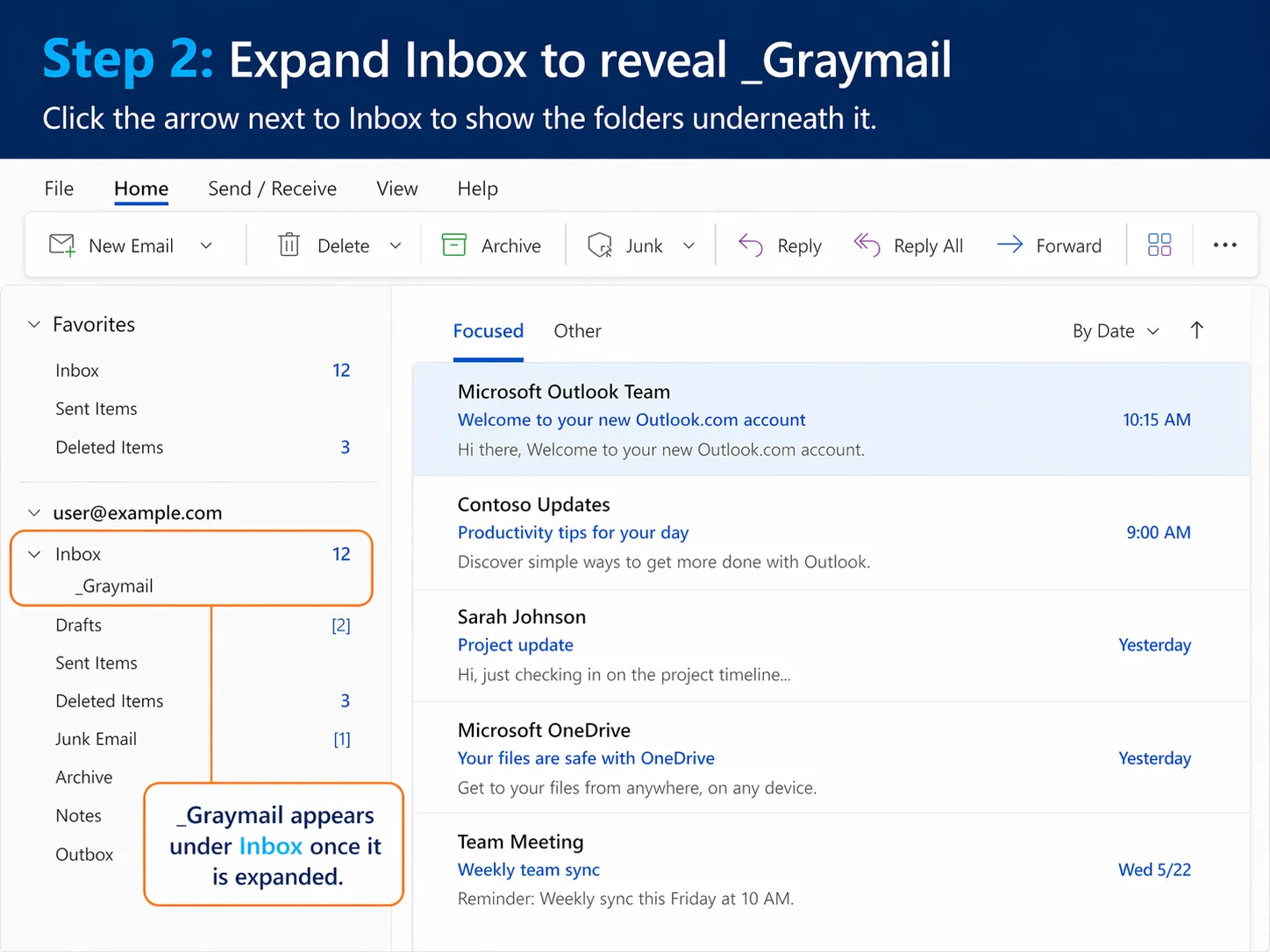
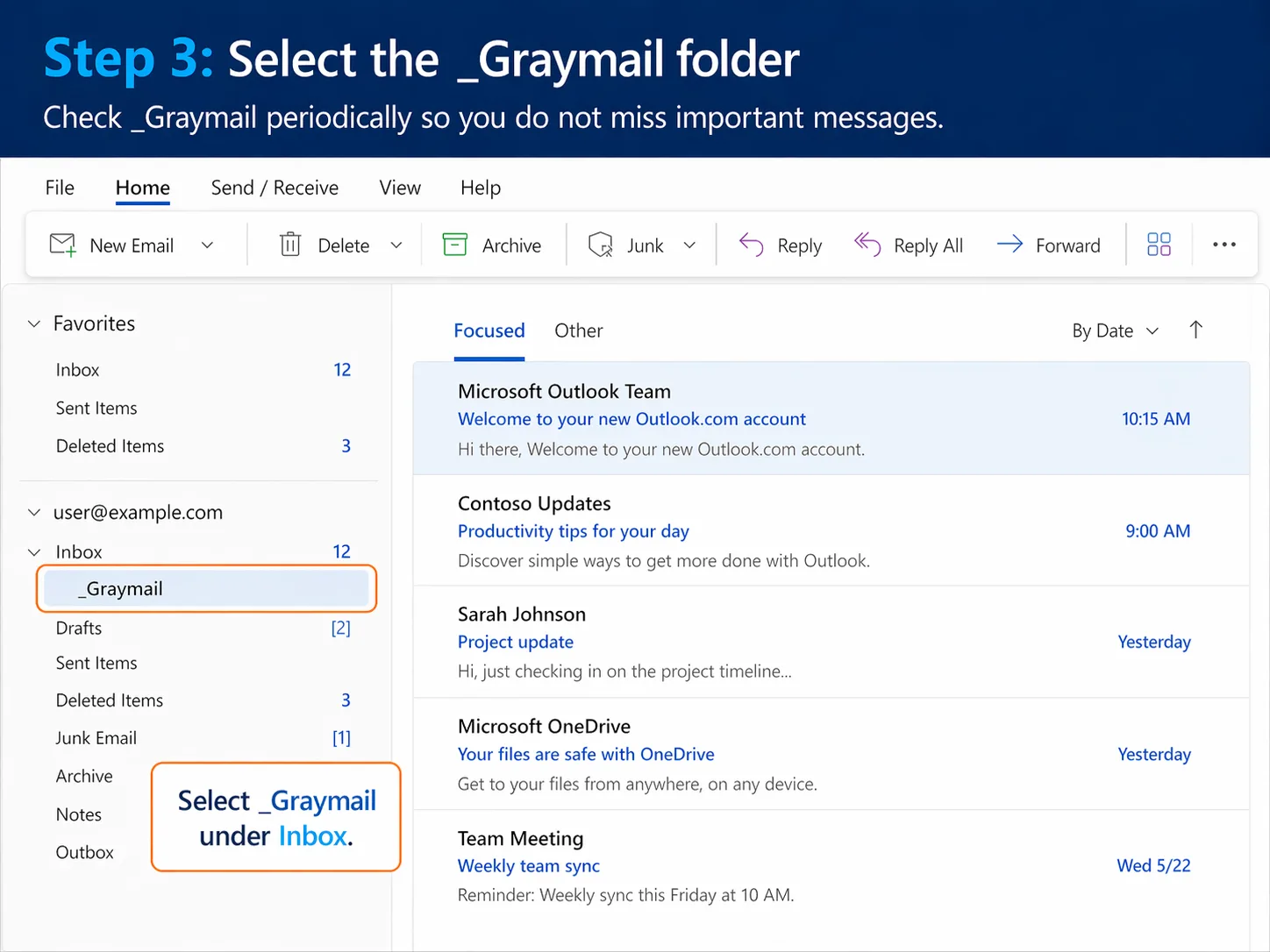
In Outlook, the Graymail folder may be located underneath your Inbox. If you do not see it right away, your Inbox may be collapsed.
To find it:
- Open Outlook.
- Look at the folder list on the left side of your mailbox.
- Find Inbox.
- Click the arrow next to Inbox to expand it.
- Select Graymail from the list under Inbox.
Emails that are filtered as graymail may be delivered to this folder instead of your main Inbox. Since the folder can be easy to miss when Inbox is collapsed, we recommend checking it periodically.
Note: Graymail messages are usually non-malicious bulk emails such as newsletters, announcements, or advertisements. However, some legitimate messages may occasionally be filtered there.
How do I stop an email from going to Graymail?
If an email was incorrectly categorized as Graymail, you can report it so future messages are delivered to your Inbox instead.
To report an email as not Graymail:
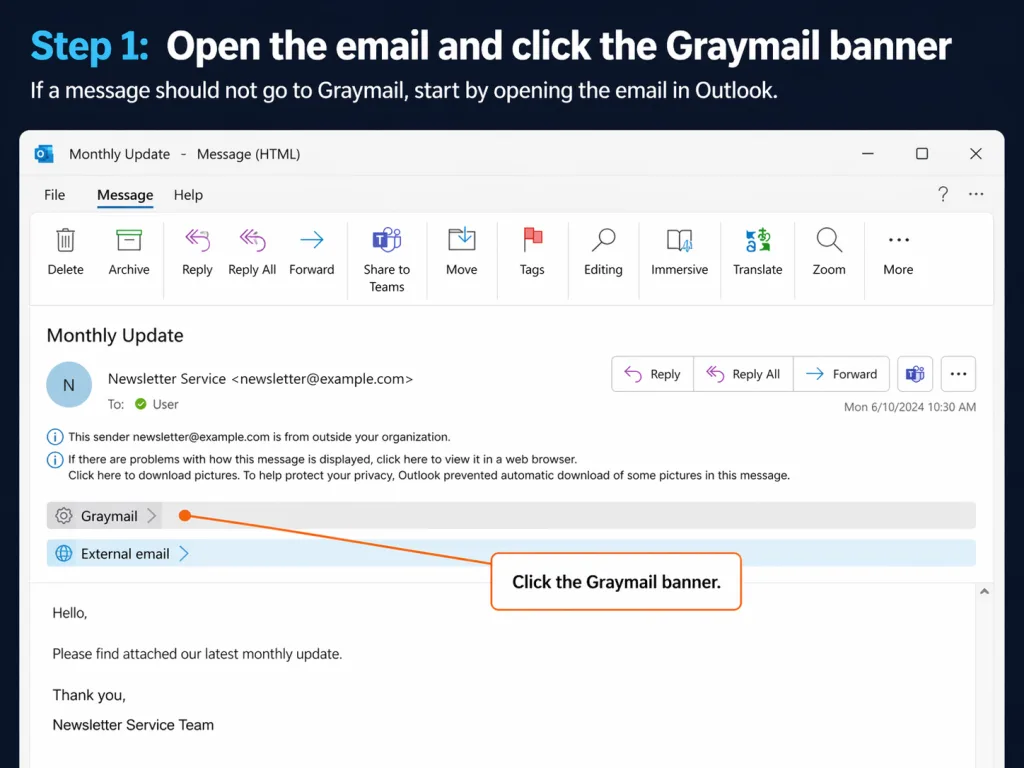
- Open the email that was sent to your Graymail folder.
- Click the Graymail banner inside the email.
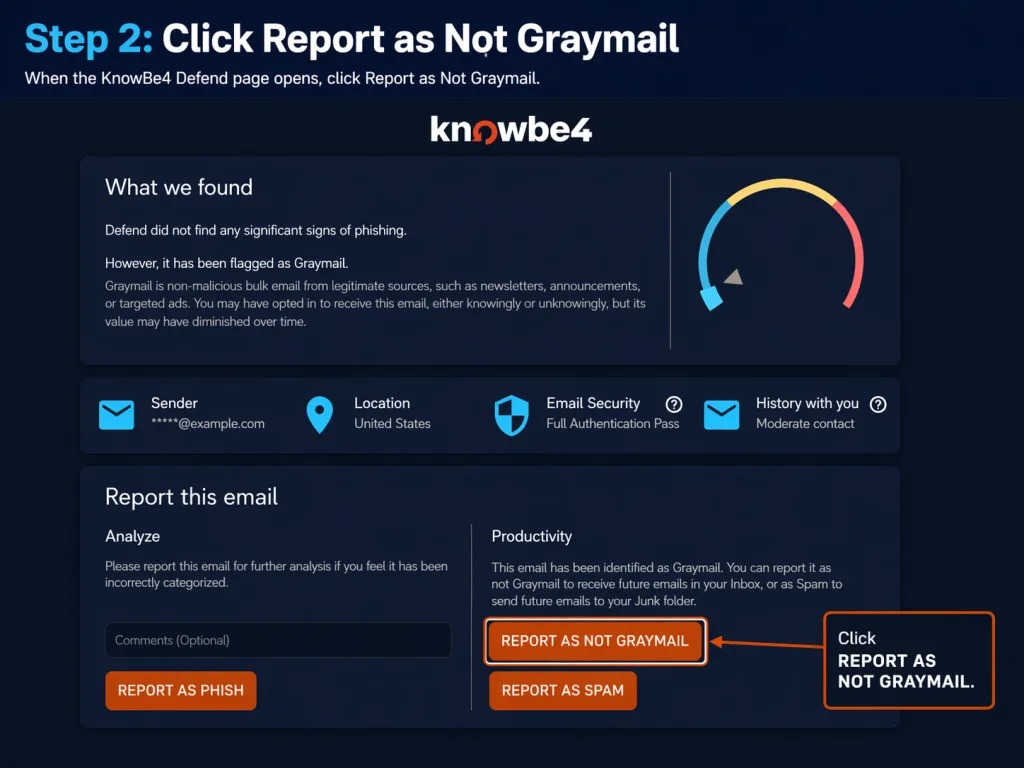
- A KnowBe4 Defend page will open with more details about the message.
- Under the Productivity section, click Report as Not Graymail.
After reporting the message, future emails from that sender may be delivered to your Inbox instead of the Graymail folder.
Note: Only use this option for emails you recognize and want to receive in your Inbox going forward.
Benign Banners: Benign banners are blue and are informative alerts that are not associated with detected threats. These banners are designed to provide additional context about an email and typically do not require any specific action. Benign banners may notify you about various email characteristics, including:
- New sender: The email is from someone who has never emailed you before.
- Financial content: The email contains financial information or references.
- External source: The email originates from outside your organization.
- Sensitive information: The email includes content that may be considered sensitive.
These banners increase awareness and help you make informed decisions about handling an email. While no immediate action is usually necessary, the information provided can be valuable for assessing the email’s relevance and importance.

Suspicious Banners: Suspicious banners are amber and are applied to emails that contain suspicious elements, potentially indicating phishing or impersonation attempts. These banners serve as a cautionary alert, prompting you to exercise increased vigilance. When you encounter an amber banner, follow the tips below:
- Exercise caution before taking any action on the email.
- Carefully inspect the sender’s email address to verify its authenticity.
- Be wary of clicking on any links within the email.
- Avoid downloading or opening attachments unless you are certain of their safety.
- If you need to reply, double-check that you’re sending to the legitimate sender, not a similar-looking fraudulent address.
- When in doubt, verify the email’s legitimacy through an alternative communication channel, such as a phone call or in-person confirmation.
- Report suspicious emails to your IT or security team for further investigation.

Dangerous Banners: Dangerous banners are red and are applied to emails exhibiting strong indicators of phishing or other malicious intent. These banners represent the highest level of threat warning. When you encounter a dangerous banner, follow the tips below:
- Do not click on any links or download any attachments within the email.
- Refrain from replying to the email or engaging with the sender.
- Do not forward the email to others, as this may spread the potential threat.
- Report the email immediately to your IT security team.
- Delete the email from your inbox after reporting it unless instructed otherwise by your IT team.
Remember, dangerous banners indicate a severe risk, and it is important to treat these emails as genuine threats. Your organization’s security protocols should always be followed when dealing with dangerous-bannered emails.

How can I learn more about Defend’s Analysis?
Open the email message, Click the Apps icon in the top-right corner of the email to open the Apps launcher. Or, click the ellipsis icon (…) and select Apps. All banners applied by Defend can be clicked on. This feature allows you to learn more about what was detected in the email. If you think an email has been categorized incorrectly, you can report it by selecting a reporting button at the bottom of the email summary page.
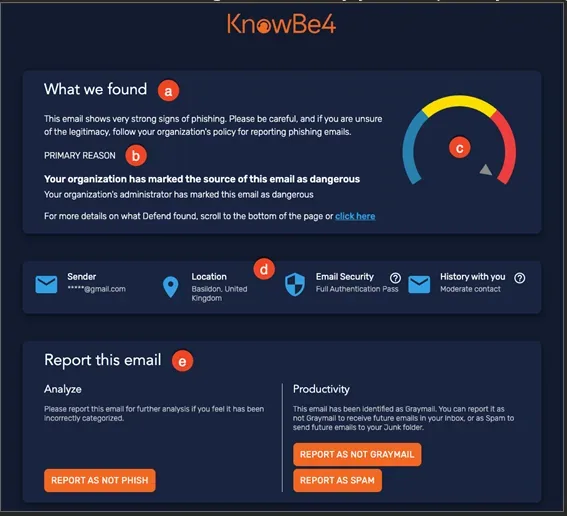
- What we found: This section provides an overview of what Defend found and the recommended action you should take. In this example, Defend identifies strong signs of phishing and recommends following your organization’s policy for reporting phishing emails.
- Primary Reason: This area describes the primary reason the email raised concerns and triggered the banners.
- Threat dial: The colored threat dial displays the risk rating that Defend has assigned to this email. In this example, Defend has assigned the highest risk classification.
- Email information: This section displays advanced email information, including details such as the sender address, sender location, email security protocols, and your previous interaction history with the sender.
- Report this email: The reporting section allows you to report the email if you believe it has been classified incorrectly by Defend.
What is Defend Link Scanner?
We are asking you to click on the button to verify all employees know how to submit phishing emails and that the button is working properly for each user Defend includes link protection that helps safeguard you from malicious links in emails, even when they appear legitimate. This protection works by checking links in your emails in two ways:
- When the email arrives
- When you click on links
This dual approach helps protect you against links that may seem safe at first but later direct you to harmful websites. Attackers sometimes change where a link goes after an email is delivered, and Defend helps catch this trick by verifying links in real-time when you click them.
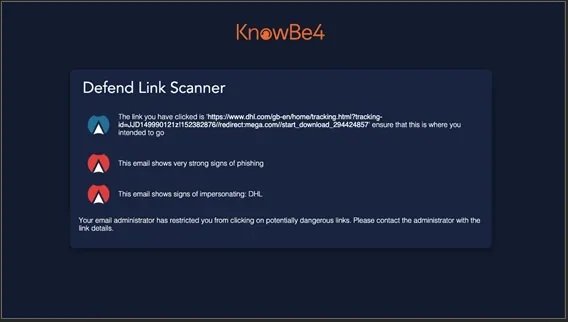
When Defend detects a potentially harmful link that you’ve clicked, you’ll see a warning screen instead of being taken directly to the website. This protective screen shows you the actual destination web address, indicates the specific signs of phishing that were detected, and highlights when the sender is being impersonated. This information helps you make an informed decision about whether it’s safe to proceed to the website, protecting you from phishing attempts and other malicious sites that could compromise your security.