
Laker Virtual Computer/VM FAQs
How do I access my Laker Virtual Computer/VM from a remote location?
Installing the Laker Virtual Computer/VM Desktop Client (pdf)
Note: To install the VM Horizon View Client (viewportal) Chrome OS software, users will need to sign into an account.
If you don’t want to use your personal google account OR don’t have one, you may go to https://accounts.google.com/signup and use your Lake Land College email address.
Do I need to connect to my Laker Virtual Computer/VM?
Your Laker Virtual Computer includes the software that you need to complete the course work you are enrolled in plus Mircosoft Office. If you already have the tools you need on your personal device, you do not need to use the Laker Virtual Computer. You can access the Laker Hub, Canvas and Laker Mail through any web browser.
My Laker Virtual Computer/VM is slow and it has been awhile since I installed the Laker Virtual Computer/VM on my laptop. Should I re-install it?
You’ll have to install/upgrade it. If your version is new enough, this should be an option on the “hamburger” menu.
If it’s too old, you’ll need to go to https://viewportal.lakelandcollege.edu and click “download” client. You’ll probably need the Windows 64-bit version (non-UWP – that’s for Surface Pros).
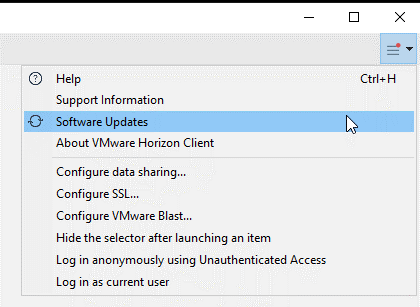
My Laker Virtual Computer/VM is slow/locked up. What should I do?
- Try using an Ethernet cable to your desktop/laptop, if possible.
- Try another internet connection elsewhere
- Try switching between the installed desktop client and HTML version.
- If your Laker Virtual Computer/VM is locked up please call 217-234 5261 and someone can reset it.
Troubleshooting – Slow Network Connections
My Laker Virtual Computer/VM is slow
Laker Virtual Computer/VM Blast Protocol Settings
How can I print from my Laker Virtual Computer/VM to my home printer?
If the printer is NOT a USB printer (has to be connected to your machine), you will need to email yourself the file and/or use the client drive redirection option (the drives should show up under ‘Computer’ if that’s working)
If the printer is a USB printer, you must be connected to your Laker Virtual Computer/VM with the VM Horizon desktop application rather than the web browser version. Click the button that says “Connect USB Device” on the bar at the top and select the printer, or choose “Automatically connect when inserted” and plug the printer’s USB cable into your computer.
Google Chrome – you can print any file Chrome can open with google cloud printing. If you do not know where to find this, search for ‘Setup google cloud print’.
How can I see my flash drive on my Laker Virtual Computer/VM?
- If you connect using the VM Horizon web client in a browser, this method will not allow you to see a flash drive connected to your computer. However, you can email documents to your student email from your computer, log into your Laker Virtual Computer/VM, then open the files.
- If you connect using the VM Horizon desktop application, you will have to enable the flash drive to pass through to your Laker Virtual Computer/VM. To do this, click the Connect USB Device button on the top bar of the Horizon client window, select Automatically Connect when Inserted, then insert your USB device into your computer.